

How to Export Data to CSV
Use Export feature of Smart Manager to export WooCommerce products, orders, coupons, any WordPress post type data to CSV.
Smart Manager’s Export feature extends beyond WooCommerce Products and their variations. It also allows you to export CSV files for orders, as well as any other post type, custom taxonomy, or user records you may have.
Watch the video below to see how to export to CSV based on filters
Steps to Export Data to CSV File
You can export records in two ways:
Option 1: Export selected records
- Go to the Smart Manager dashboard. From the navigation bar at the top, select a dashboard from the dropdown menu (e.g., Products).
- Select the records you wish to export by ticking the checkboxes.
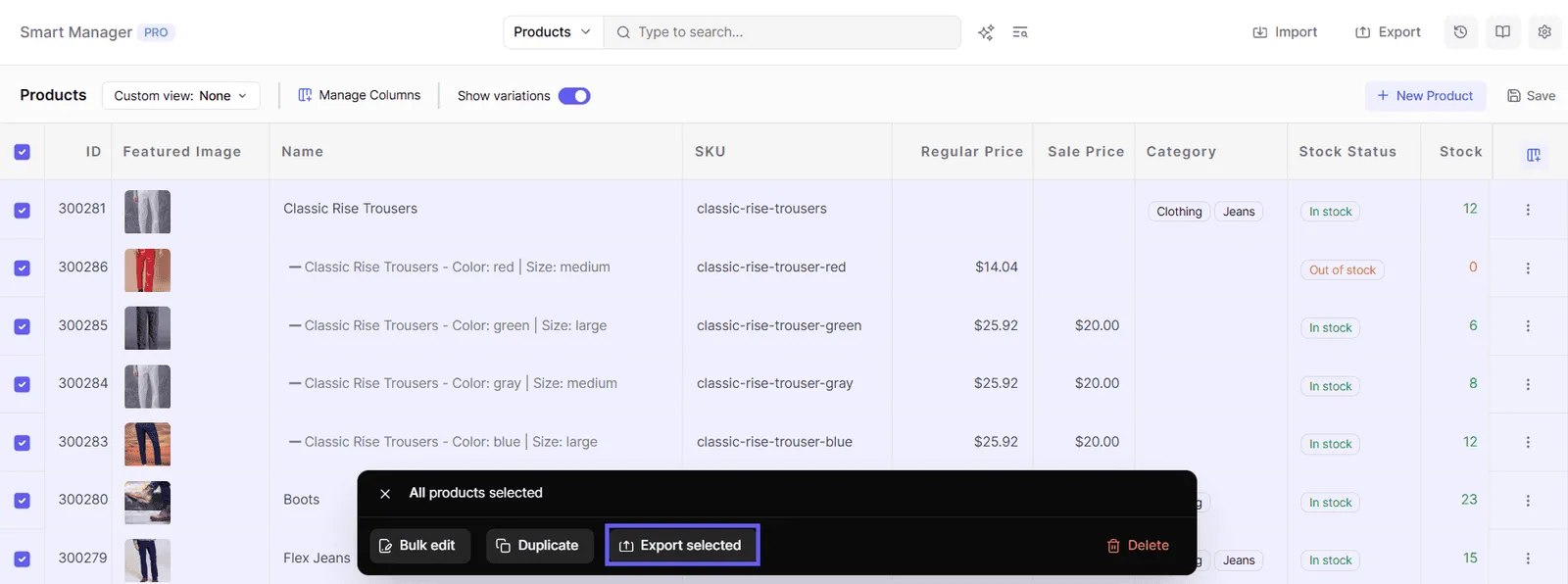
- Click on ‘Export selected’ in the floating action bar at the bottom (appears on record selection). This will open a confirmation modal.
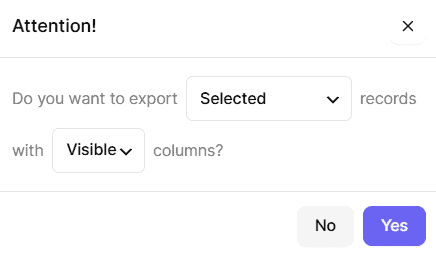
- In the modal, confirm the export by selecting:
- Records – Choose between ‘Selected’ (only the records you’ve ticked) or ‘All (Entire Store)’.
- Columns – Choose between ‘Visible’ (currently shown columns in the grid) or ‘Stock’ (relevant stock-related columns; available for the WooCommerce Products dashboard).
- Click ‘Yes’ to proceed with the export.
Option 2: Export all records from the header
- Go to the Smart Manager dashboard and select a dashboard from the dropdown menu (e.g., Products).
- Hover on the ‘Export’ button in the top navigation bar. You’ll see the following options (for Products):
- Entire Store – Stock Columns: Export the entire store’s dataset along with stock-related columns.
- Entire Store – Visible Columns: Export the entire store’s dataset, including the columns that are currently visible.
- Clicking either option will open the confirmation modal with the Records and Columns fields pre-selected based on your choice (e.g., ‘All (Entire Store)’ with ‘Stock’ columns).
- Click ‘Yes’ to proceed with the export.
For a filtered export, apply search filters or enable/disable columns before exporting, as explained in the steps above.
That’s it. Follow the above steps to export CSV data of other post types.
You can also schedule CSV exports, a feature currently available only for WooCommerce Orders. Click here to learn more.
Notes:
- Export CSV will only include columns that are currently enabled in the grid, when exporting with ‘Visible’ columns.
- The ‘Stock’ columns option is available only for the WooCommerce Products dashboard.
- WooCommerce Products dashboard specific export options are available in Smart Manager Lite too.
- For large exports, Smart Manager Pro automatically processes the CSV export in the background, preventing server execution time limit interruptions.