

How to Install StoreApps Plugins
Learn how to install StoreApps plugins. It is extremely easy and the whole process can be completed in a couple of minutes!
Installing StoreApps plugins is extremely easy and the whole process can be completed in a couple of minutes – if not in under a minute!
Initial Requirement
Make sure you have WooCommerce installed & activated before you install StoreApps Plugins!
Download & Install the Plugin file
There are two ways to download a plugin.
Directly from StoreApps My Account page
If you want to download the plugin directly from the StoreApps website, kindly follow these steps to get started instantly: Step 1: Login to My Account area and go to Downloads tab.
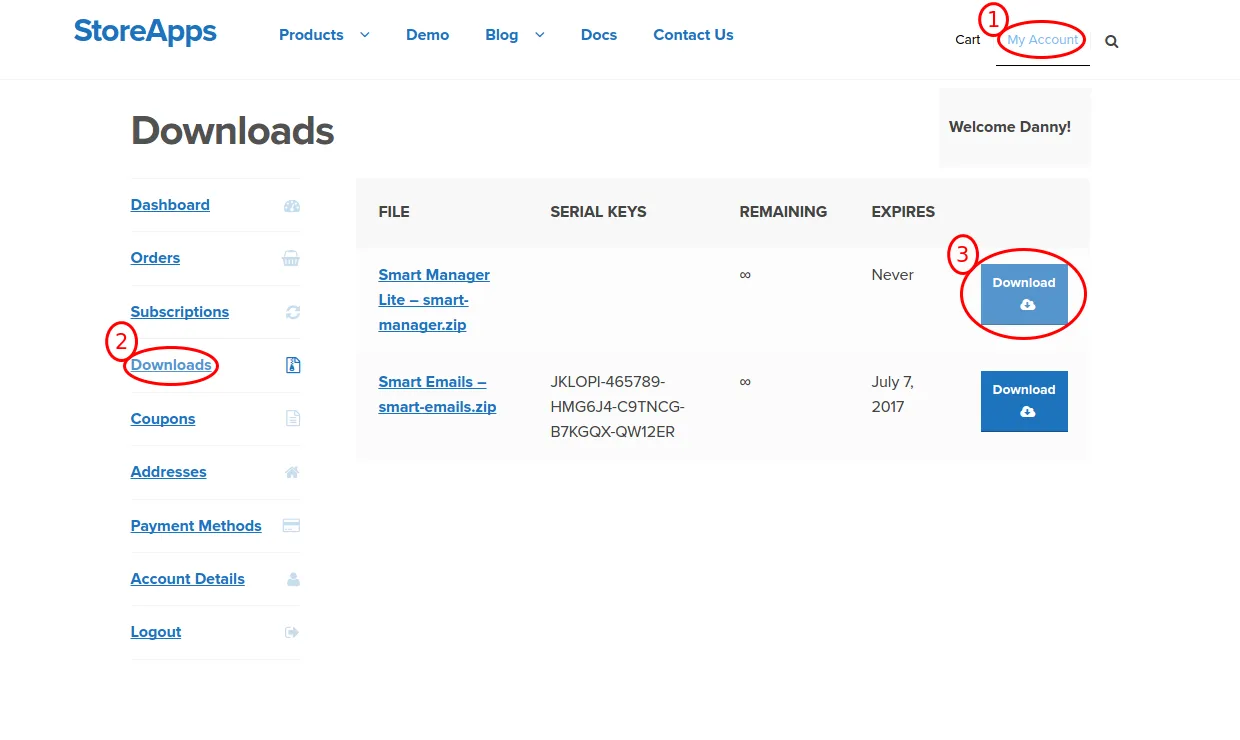
Step 2: From there, download the .zip file of the plugin you’ve purchased. Step 3: Now, log in to your WordPress Website. Step 4: Go to your WordPress Dashboard → Plugins and click on Add New. Step 5: Click on Upload Plugin button and then Choose File button to upload .zip file of the plugin directly. Step 6: After uploading .zip plugin file, click Install Now button to install. Step 7: After installation is complete, activate the plugin by clicking Activate Plugin button. Step 8: That’s it! The plugin is now activated! 2.
Directly from Order Complete E-mail
The download link is also available in the order confirmation email. (But My Account is the easiest method!) Step 1: Open your Order Complete E-mail of the plugin you have purchased. Step 2: Under the plugin name you will see a link to download the .zip file of the plugin you’ve ordered. Step 3: Click on that link & the plugin will be downloaded. Step 4: After the download is completed, log in to your WordPress Website. Step 5: Go to your WordPress Dashboard → Plugins and click on Add New. Step 6: Click on Upload Plugin button and then Choose File button to upload .zip file of the plugin directly. Step 7: After uploading .zip plugin file, click Install Now button to install. Step 8: After installation is complete, activate the plugin by clicking Activate Plugin link. Step 9: That’s it! The plugin is now activated!
Troubleshooting – Common Problems
Most of the problems in installation are related to permission problems. The best way to resolve them is to first make sure that you can install / upgrade other plugins in WordPress. And if so, delete existing plugin folder from the server using Control Panel / FTP and then try again.
WordPress also has excellent guidelines on troubleshooting plugin installation / activation problems. Please review them too.
If something is still not working, feel free to contact us for support!