

How to Bulk Edit / Batch Update (with Scheduling)
Smart Manager plugin lets you schedule bulk edit for WooCommerce products, orders, coupons, users, any WordPress post type quickly, and also Undo the chnages.
Bulk edit or batch update feature lets you change / update multiple fields for multiple records for any post type/taxonomy. You can bulk edit selected records or all records at once.
Note: Bulk edit functionality is available in the Pro version only.
Watch this video on how to bulk edit sale prices, schedule them and revert changes at once.
This doc explains how you can bulk edit products, orders, coupons, blog posts, users, any WordPress post type or any WordPress taxonomy.
How to perform bulk edit for selected records / all records (now or schedule)
- Select a dashboard from the drop-down.
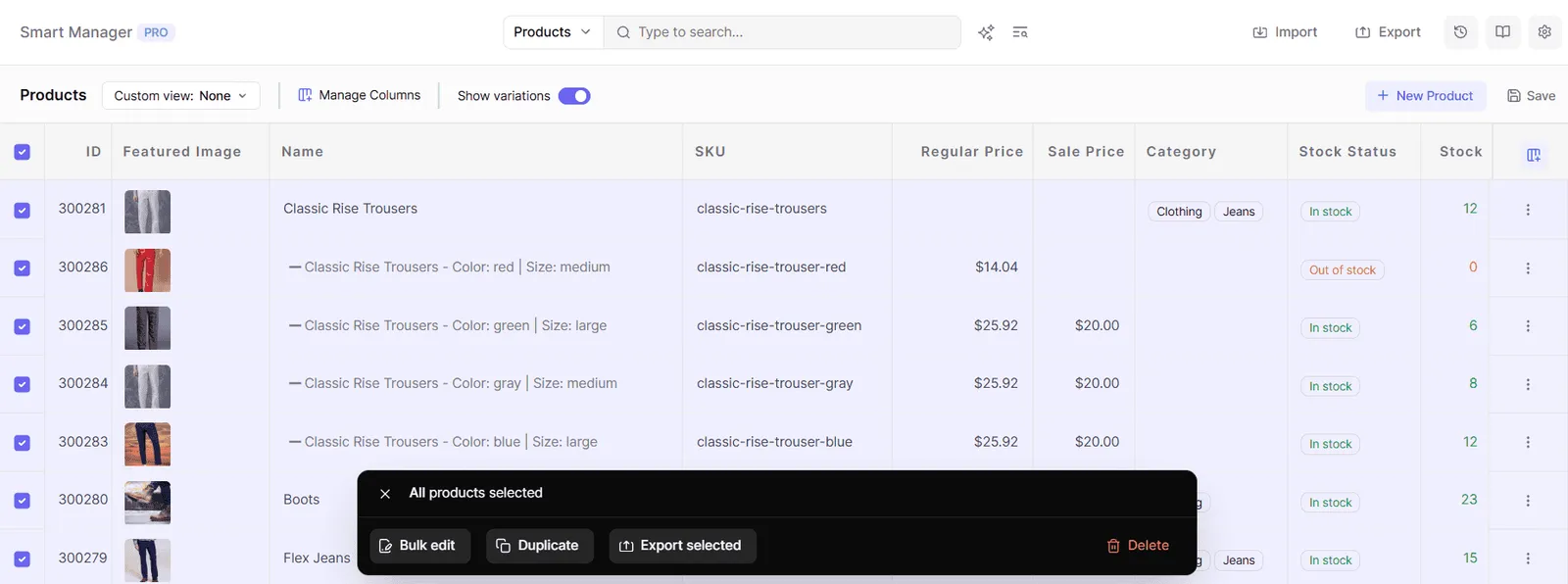
- Select as many records as you want. You can also apply search filters to filter records and select some records from it to perform the bulk edit operation. To bulk edit all records, tick the header checkbox.
- Click on the ‘Bulk Edit’ button in the floating action bar at the bottom (appears once you select records in the grid). It will open a slide-over panel.
- Here, add as many bulk edit/batch update actions you want. Select a field and a corresponding action to be performed on that field. For selected records, the ‘Selected Items’ option will be selected. For all records, it will be the ‘All Items In Store’ option.
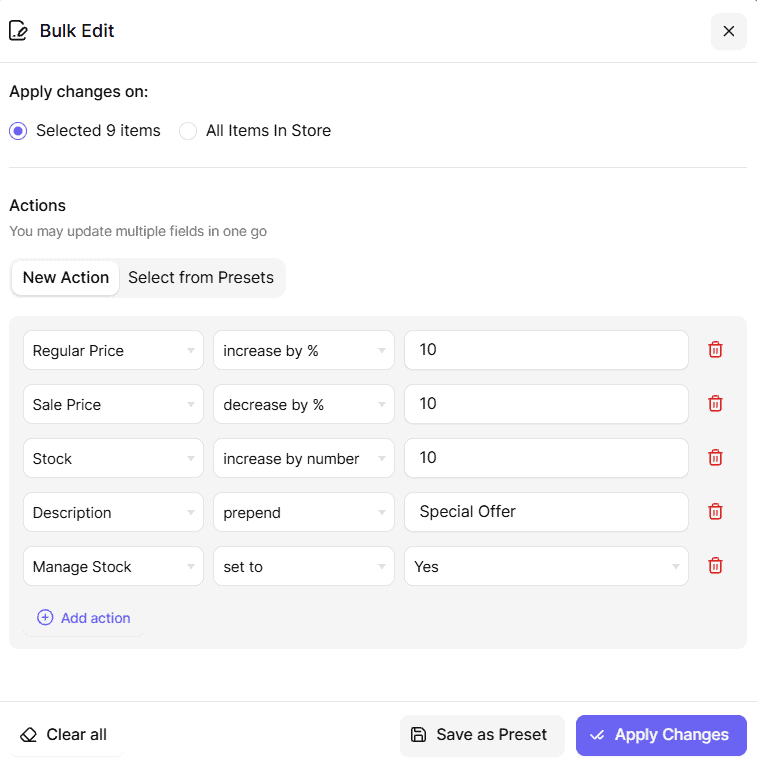
- Click on the ‘Apply Changes’ button. This will open a Task Title modal.
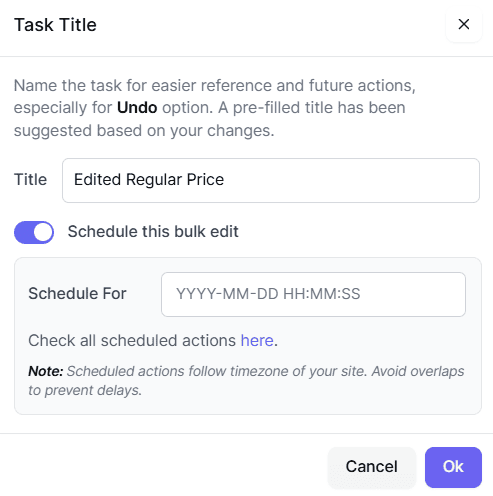
- In the Task Title modal:
- Title: A title is pre-filled based on your changes (e.g., “Edited Regular Price”). You can edit this name for easier reference and future actions, especially if you need to use the Undo option later. Note: This will be visible only if you’ve enabled
Show tasks title modalin Settings. - Schedule this bulk edit: Toggle this on if you want to run the Bulk Edit at a later date and time, instead of instantly.
- If left off, the changes will be applied instantly.
- If toggled on, a Schedule For field will appear. Enter the desired date and time (in YYYY-MM-DD HH:MM:SS format) to schedule the Bulk Edit operation.
- Click ‘Ok’ to initiate the Bulk Edit operation (instantly or at the scheduled time, based on your selection).
That’s it. All actions will be performed in the sequence you’ve set in the Bulk Edit window – and on all the selected records.
You can also bulk edit WooCommerce subscriptions, bookings, memberships, cost of goods, seo fields of Yoast and RankMath plugins and others using Smart Manager.
You can also save bulk edits — a feature available only in the Pro version. Click here to learn more.
When bulk editing WooCommerce Subscription product prices, Bulk Edit also gives you the option to automatically update prices for existing subscriptions. Click here to learn more.
Note - The Bulk Edit operation runs in the background. So you can do your other tasks while it is running. You’ll be notified on your mail once it is completed.